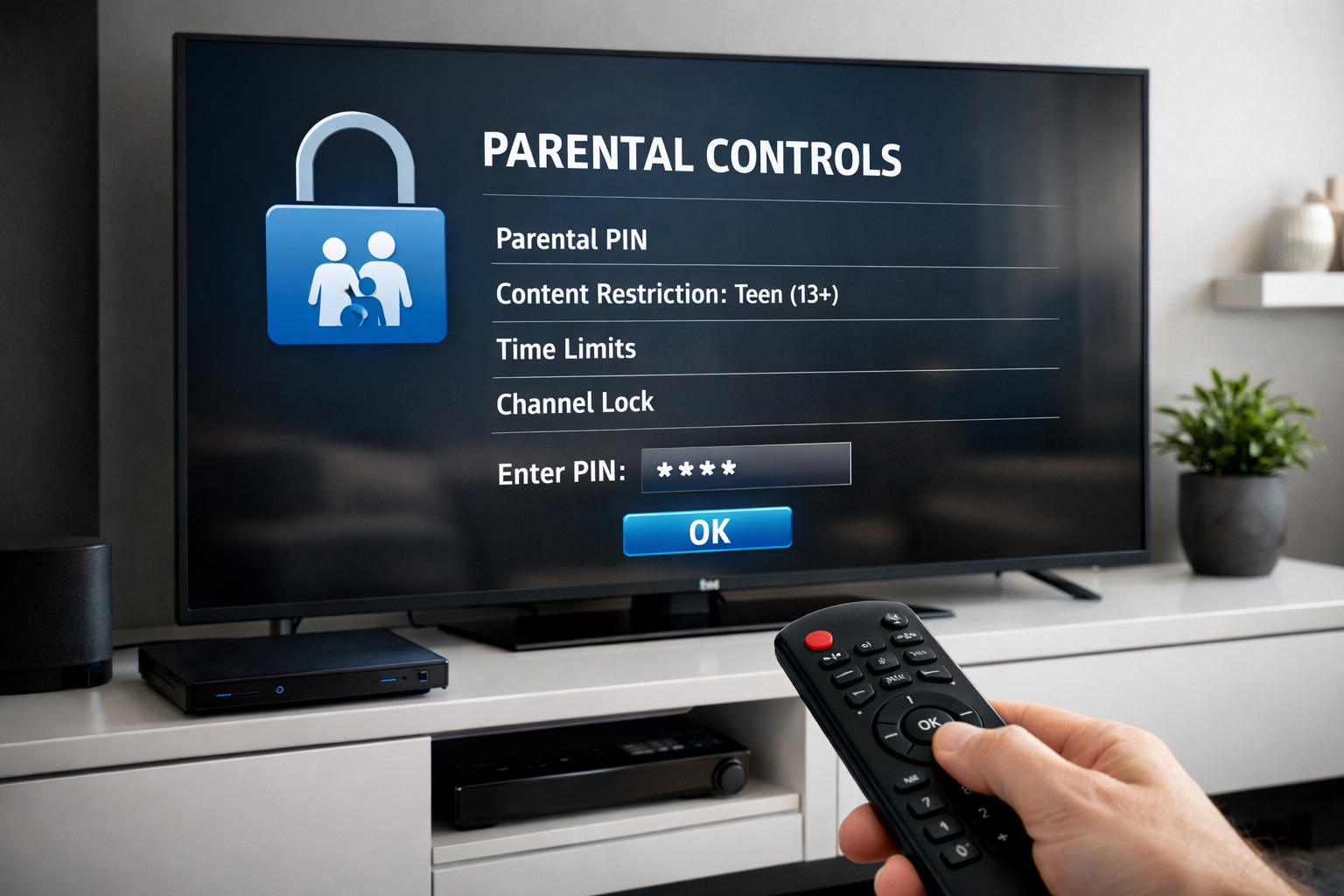
Setting up IPTV with parental controls on Chromecast in the UK has become essential for families seeking safe, controlled streaming experiences. IPTV parental controls allow you to manage content access, restrict age-inappropriate material, and create customized viewing profiles for different family members. With Chromecast's seamless integration and advanced filtering options, UK households can now enjoy premium entertainment while maintaining complete peace of mind about what their children watch.
Understanding IPTV Parental Controls and Their Importance
What Are IPTV Parental Controls?
IPTV parental controls are digital safeguards built into streaming services that allow parents to restrict access to certain channels, programs, or content based on age ratings. These tools prevent unauthorized viewing of adult material and give families granular control over their entertainment consumption.
Modern IPTV systems in the UK integrate multiple filtering layers, including PIN protection, age-based ratings, and channel blacklisting. Services like UK IPTV providers now offer sophisticated parental management features accessible through user-friendly interfaces.
Why Parental Controls Matter for UK Families
- Protects children from inappropriate content and advertising
- Prevents accidental access to adult channels and programs
- Allows parents to set viewing time limits and schedules
- Creates separate profiles for different family members
- Complies with UK broadcasting standards and regulations
- Provides peace of mind during unsupervised viewing
Chromecast IPTV Setup: Hardware and Requirements
Essential Hardware for Chromecast IPTV in UK
To establish a functional IPTV setup with Chromecast in the UK, you'll need specific equipment and connectivity. Chromecast devices offer exceptional value and reliability for streaming IPTV content across your home entertainment system.
The following hardware components ensure optimal performance:
- Google Chromecast (3rd Gen or newer, or Chromecast with Google TV)
- Compatible IPTV subscription service with Chromecast support
- Stable broadband connection (minimum 25 Mbps recommended)
- HDMI cable and power adapter
- Smartphone or tablet for casting and control
- 4K-capable television (optional but recommended)
Internet Requirements and UK ISP Considerations
Your internet connection must be reliable and fast enough to handle IPTV streaming without buffering. UK ISPs like BT, Sky, Virgin Media, and TalkTalk offer packages suitable for IPTV services, though performance varies by provider and location.
| ISP Provider | Recommended Speed | 4K Support | Stability Rating |
|---|---|---|---|
| Virgin Media | 100+ Mbps | Yes | Excellent |
| BT Fibre | 67+ Mbps | Yes | Very Good |
| Sky Superfast | 59+ Mbps | Yes | Very Good |
| TalkTalk Fibre | 50+ Mbps | Limited | Good |
Step-by-Step IPTV Setup on Chromecast
Initial Chromecast Configuration
Begin by connecting your Chromecast device to your television's HDMI port and plugging in the power cable. Once powered on, your TV will display a setup code that you'll use to configure the device through your smartphone or tablet.
- Plug Chromecast into your TV's HDMI port
- Download the Google Home app on your iOS or Android device
- Launch Google Home and follow the pairing instructions
- Connect Chromecast to your home Wi-Fi network
- Create or sign in with your Google account
- Select your Chromecast device and complete setup
Installing Your IPTV Service
After Chromecast setup, you need to install your chosen IPTV application. VistraTV offers comprehensive coverage with 12,000+ channels, 4K Ultra HD streaming, and H.265 codec support across 55+ countries, making it ideal for UK users seeking robust parental control features.
Access the Google Play Store through your Chromecast device or smartphone to download your IPTV app. Search for your service provider, install the application, and launch it to begin the configuration process.
Configuring Advanced Parental Controls on Chromecast IPTV
Setting Up PIN Protection and Access Restrictions
PIN protection is the foundation of effective IPTV parental controls. A strong, unique PIN prevents children from changing settings or accessing restricted content without permission. Create a PIN that's easy for adults to remember but difficult for children to guess.
- Navigate to Settings in your IPTV app
- Select Parental Controls or Security options
- Enable PIN protection and create a secure 4-6 digit code
- Confirm the PIN by entering it twice
- Set PIN requirements for specific actions or content
- Store your PIN securely away from children
Age-Based Content Filtering and Channel Restrictions
Most modern IPTV systems categorize content by age appropriateness. You can restrict channels and programs based on UK broadcasting standards including PEGI ratings and Ofcom classifications. This ensures children only see content suitable for their developmental stage.
Configure age-based filters by selecting your youngest viewer's age and allowing the system to automatically block inappropriate channels. Premium IPTV services like VistraTV include comprehensive filtering that blocks adult content, gambling channels, and mature programming by default.
Creating Individual User Profiles
Separate user profiles for each family member enable personalized content restrictions. Children's profiles can have strict limitations, while adult profiles maintain full access to all programming available through your subscription.
- Access the Profiles section in your IPTV settings
- Create a new profile for each family member
- Assign appropriate age restrictions to each profile
- Customize channel access and program availability
- Set viewing time limits for younger users
- Enable lock features requiring PIN authentication
Advanced Features and Multi-Screen Setup
Utilizing Multi-Screen Capabilities
VistraTV supports multi-screen viewing, allowing your family to watch different content simultaneously on multiple devices. This feature is perfect for households where family members have different viewing preferences. VistraTV subscriptions include multi-device support with straightforward parental control management across all screens.
Configure device-level restrictions to ensure parental controls apply consistently across smartphones, tablets, and televisions. Set up separate profiles for each device to maintain appropriate content filtering regardless of which screen family members use.
Time-Based Viewing Restrictions
Modern IPTV parental controls allow you to schedule viewing windows, restricting access during homework time, meals, or bedtime. These time-based features help regulate screen time and promote healthy viewing habits for children.
- Set daily viewing schedules in parental control settings
- Define weekday versus weekend restrictions
- Create blackout periods during study or sleep hours
- Enable notifications when viewing time limits approach
- Override schedules temporarily with PIN authentication
UK-Specific Content and Channel Management
Managing BBC, ITV, and Premium Channels
UK viewers have exceptional access to quality content through BBC One, BBC Two, ITV, Channel 4, and premium services like Sky Sports, BT Sport, TNT Sports, and Sky Atlantic. Configure your parental controls to restrict access to specific channels or content categories while maintaining unrestricted access to age-appropriate programming.
Create child-safe profiles that exclude sports betting content from Sky Sports and BT Sport, and filter reality television categories known for adult content. Most UK IPTV providers allow granular channel-level control, giving you complete management of what appears in your children's viewing lists.
Sports Content and Premium Programming Control
Premier League football, FA Cup matches, League Cup finals, Championship games, Six Nations rugby, Wimbledon tennis, The Open golf, Ashes Cricket, F1 British Grand Prix, and Grand National racing are premium attractions that often include pre-match analysis or commentary with mature language. Parental controls enable you to restrict access to these channels during unsupervised viewing.
Comparing IPTV Services with Parental Controls in the UK
IPTV Alternatives and Feature Comparison
| Service | Parental Controls | 4K Support | Price (Annual) | Trial Available |
|---|---|---|---|---|
| VistraTV Standard | Advanced PIN, Age Filters | Yes (4K) | 44€ | Yes - 24h Free |
| VistraTV Gold | Advanced + Profiles | Yes (4K) | 54€ | Yes - 24h Free |
| VistraTV Platinum | Premium Parental Suite | Yes (4K) | 64€ | Yes - 24h Free |
| Sky Sports | PIN Protection | Limited | £179+ | No |
| BT Sport | Basic Controls | Yes | £69.99/month | Limited |
| NOW TV | PIN Control | Limited | £11.99/month | 7 days |
| Amazon Prime Video | Parental PIN | Yes | £8.99/month | 30 days |
| DAZN UK | Basic PIN | Yes | £14.99/month | 7 days |
Why VistraTV Stands Out for UK Families
VistraTV offers comprehensive IPTV parental controls combined with exceptional value and feature richness. With 12,000+ channels, 4K Ultra HD, H.265 codec support, and multi-screen capability, VistraTV delivers professional-grade parental management at affordable prices.
The service includes a free 24h trial allowing you to test all parental control features before committing to a subscription. Try VistraTV's advanced filtering, PIN protection, and profile management at no cost to confirm it meets your family's specific needs.
Troubleshooting Common Parental Control Issues
PIN Reset and Password Recovery
If you forget your parental control PIN, most IPTV services offer recovery options through your account email. Contact customer support with proof of account ownership to reset your PIN. Always store your PIN securely in a password manager that only you can access.
Bypassing and Circumventing Controls
Tech-savvy children may attempt to bypass parental controls through VPNs, app resets, or account manipulation. Maintain strong password security on your main account, keep firmware updated, and regularly monitor viewing history to detect unusual activity.
Frequently Asked Questions About IPTV Parental Controls and Chromecast
Can I set different parental controls for each family member on one Chromecast?
Yes, create separate user profiles in your IPTV app with individualized parental control settings. Each profile can have unique age restrictions, PIN protection requirements, and viewing time limits while sharing the same Chromecast device.
What happens if my child enters the wrong PIN multiple times?
Most IPTV systems lock the account temporarily after 3-5 failed PIN attempts, requiring parental authentication to unlock. This security feature prevents brute-force attacks on your parental controls and protects restricted content access.
Can parental controls work across multiple devices simultaneously?
Yes, VistraTV's multi-screen support applies parental controls across all connected devices. Configure restrictions once and they automatically apply to Chromecast, smartphones, tablets, and smart TVs linked to your account with IPTV uk service settings.
Is it possible to customize parental controls by channel rather than age rating?
Absolutely. Advanced IPTV services like VistraTV allow channel-by-channel blocking independent of age ratings. You can restrict specific channels (like Sky Atlantic or TNT Sports) while allowing other premium content in the same category.
How often should I review and update parental control settings?
Review parental control settings quarterly or whenever children reach new age milestones. Monitor viewing history monthly to identify content your children are accessing and adjust restrictions accordingly. Update PIN codes every 6-12 months for optimal security.
Best Practices for Secure IPTV Parental Control Management
Creating a Secure PIN Strategy
- Use a PIN unrelated to birthdays, anniversaries, or sequential numbers
- Never share your PIN with children or babysitters who lack accountability
- Change